Resetting Settings and Updating Firmware on Donyx Routers
| This article applies to dnxOS version 1.1 and later. |
Overview of Main Functions and Parameters
Resetting Settings
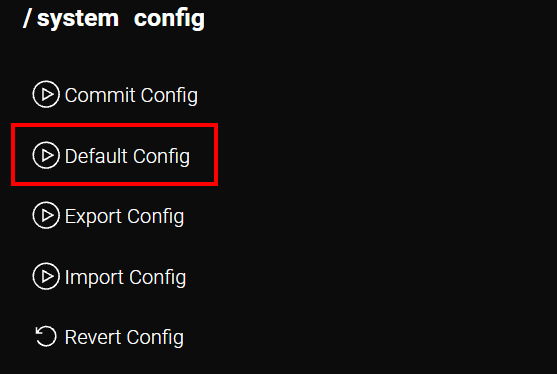
Settings are reset in the /system → config section by clicking the Default Config button.
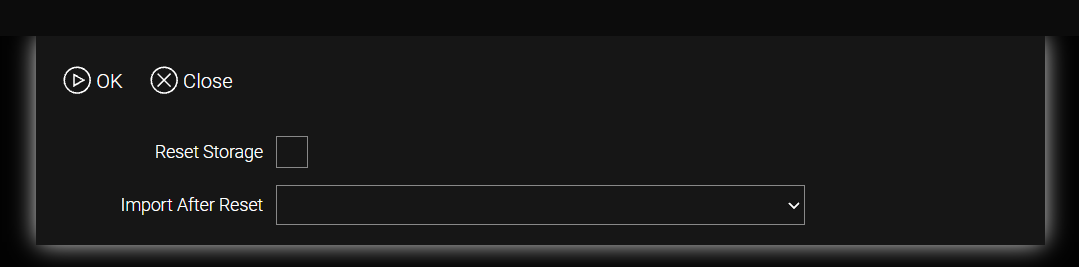
A window opens where you can configure the following parameters:
Name |
Description |
Reset Storage |
When set to true (enabled), deletes imported files from /storage → file and certificates from /storage → certificate. Regardless of the Reset Storage value, all temporary files are deleted during the reset process |
Import After Reset |
The name of the configuration file that will be applied after the device is reset. To apply the default.conf file after the reset, leave the Import After Reset drop-down menu empty |
| A configuration file can be simultaneously imported into /storage → file and not imported (temporary) in /storage → temp. Priority is always given to the imported file, but if it is absent, the temporary one is applied. |
default.conf is the device configuration in CLI syntax, applied as the default configuration after resetting settings. To be applied automatically, the file must be named default.conf and stored in /storage → file.
Updating Firmware
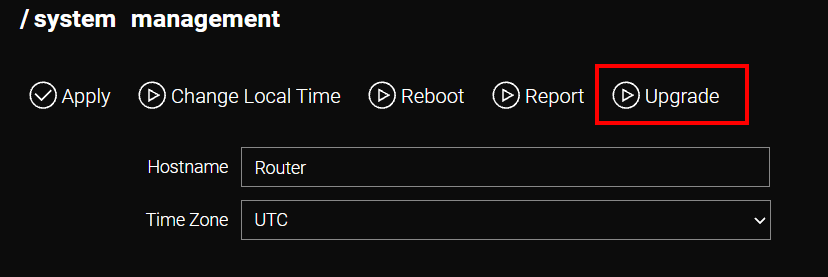
Firmware is updated in the /system → management section by clicking the Upgrade button.
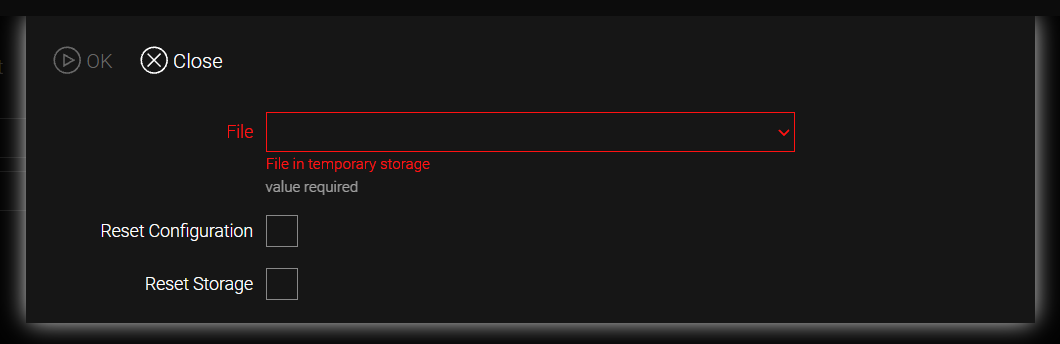
A window opens where you can configure the following parameters:
Name |
Description |
File |
The name of the firmware file to be applied after the update |
Reset Configuration |
When set to true (enabled), resets the device configuration during the update process. |
Reset Storage |
When set to true (enabled), deletes imported files from /storage → file and certificates from /storage → certificate. Regardless of the Reset Storage value, all temporary files are deleted during the reset process |
Firmware Bundle – a .tar archive that includes firmware, packages, and the default.conf configuration file.
|
When a Firmware Bundle is present, the default.conf file may exist in /storage → temp or /storage → file, as well as inside the Firmware Bundle. In this case, the default.conf file from the Firmware Bundle takes priority. If the Firmware Bundle does not contain a default.conf file, the file from /storage → temp or /storage → file will be applied. |
Scenarios for Resetting Settings
Resetting Settings While Preserving Storage
-
Go to the /system → config section.
-
Click the Default Config button.
-
In the window that opens, click OK.
Result: The router resets the current settings and applies the configuration from the default.conf file. Files and certificates in the /storage section are preserved.
CLI configuration:
/system config default
Resetting Settings While Clearing Storage
-
Go to the /system → config section.
-
Click the Default Config button.
-
In the window that opens:
-
Enable the Reset Storage function.
-
Click OK.
-
Alternatively, hold the Reset button on the device body for more than 8 seconds (optimally 12-15 seconds).
Result: The router resets the current settings and applies the configuration from the default.conf file. Files and certificates in the /storage section are deleted.
CLI configuration:
/system config default reset-storage=true
Applying a Configuration File When Resetting Settings
| The router’s configuration files are stored in /storage → file. When configuring a site, each router must be assigned its own configuration file, and settings must be reset using that file. If a device fails, the same actions and the same configuration file must be used when configuring a new router. |
-
Go to the /system → config section.
-
Click the Default Config button.
-
In the window that opens:
-
In the Import After Reset drop-down menu, select the desired configuration file.
-
Leave the Reset Storage function at its default value or enable it.
-
Click OK.
-
| If no other configuration file is specified, the default.conf file will be applied. |
Result: The router resets the current settings and applies the configuration from the specified file. Files and certificates in the /storage section are deleted if the Reset Storage function is enabled.
CLI configuration:
/system config default file=<configuration_file>or
/system config default file=<configuration_file> reset-storage=trueScenarios for Updating Firmware
Updating Firmware with Settings Reset and Storage Cleanup
| The firmware file must first be uploaded to /storage → file. |
-
Go to the /system → management section.
-
Click the Upgrade button.
-
In the window that opens:
-
In the File drop-down menu, select the firmware file.
-
Enable the Reset Configuration and Reset Storage functions.
-
Click OK.
-
Result: The router resets the current settings. The firmware is updated. Files and certificates in the /storage section are deleted.
CLI configuration:
/system management upgrade file=<firmware_file> reset-config=true reset-storage=true
Updating Firmware with Settings Reset and Storage Preservation
| The firmware file must first be uploaded to /storage → file. |
-
Go to the /system → management section.
-
Click the Upgrade button.
-
In the window that opens:
-
In the File drop-down menu, select the firmware file.
-
Enable the Reset Configuration function.
-
Click OK.
-
Result: The router resets the current settings and applies the configuration from the default.conf file. The firmware is updated. Files and certificates in the /storage section are preserved.
CLI configuration:
/system management upgrade file=<firmware_file> reset-config=true
Updating Firmware While Preserving Packages
| The firmware file must first be uploaded to /storage → file. |
-
Go to the /system → management section.
-
Click the Upgrade button.
-
In the window that opens:
-
In the File drop-down menu, select the firmware file.
-
Click OK.
-
Result: The router does not reset the current settings. The firmware is updated. Packages in the /storage → file section are preserved.
CLI configuration:
/system management upgrade file=<firmware_file>
Updating Firmware with Storage Cleanup
| The firmware file must first be uploaded to /storage → file. |
-
Go to the /system → management section.
-
Click the Upgrade button.
-
In the window that opens:
-
In the File drop-down menu, select the firmware file.
-
Enable the Reset Storage function.
-
Click OK.
-
Result: The router does not reset the current settings. The firmware is updated. Files and certificates in the /storage section are deleted.
CLI configuration:
/system management upgrade file=<firmware_file> reset-storage=true
Applying a Configuration File After Updating Firmware
| The firmware file must first be uploaded to /storage → file. |
-
Go to the /system → management section.
-
Click the Upgrade button.
-
In the window that opens:
-
In the File drop-down menu, select the firmware file.
-
Click OK.
-
-
Go to the /system → config section.
-
Click the Default button.
| The router’s configuration files are stored in /storage → file. When configuring a site, each router must be assigned its own configuration file, and settings must be reset using that file. If a device fails, the same actions and the same configuration file must be used when configuring a new router. |
-
In the window that opens:
-
In the Import After Reset drop-down menu, select the desired configuration file.
-
Click OK.
-
| If no other configuration file is specified, the default.conf file will be applied. |
Result: The router resets the current settings and applies the configuration from the specified file. The firmware is updated.
CLI configuration:
/system management upgrade file=<firmware_file>/system config default file=<configuration_file>Scenarios for Installing a Firmware Bundle
Installing a Firmware Bundle Without Resetting Settings
| The Firmware Bundle must first be uploaded to /storage → file. |
-
Go to the /system → management section.
-
Click the Upgrade button.
-
In the window that opens:
-
In the File drop-down menu, select the Firmware Bundle.
-
Click OK.
-
Result: The router does not reset the current settings; the default.conf file from the Firmware Bundle is not applied. The firmware is updated, and files from the Firmware Bundle are added.
CLI configuration:
/system management upgrade file=<archive.tar>
Installing a Firmware Bundle with Settings Reset and Storage Preservation
| The Firmware Bundle must first be uploaded to /storage → file. |
-
Go to the /system → management section.
-
Click the Upgrade button.
-
In the window that opens:
-
In the File drop-down menu, select the Firmware Bundle.
-
Enable the Reset Configuration function.
-
Click OK.
-
Result: The router resets the current settings and applies what is specified in the default.conf file from the Firmware Bundle. The firmware is updated, and files from the Firmware Bundle are added.
CLI configuration:
/system management upgrade file=<archive.tar> reset-config=true
Installing a Firmware Bundle with Settings Reset and Storage Cleanup
| The Firmware Bundle must first be uploaded to /storage → file. |
-
Go to the /system → management section.
-
Click the Upgrade button.
-
In the window that opens:
-
In the File drop-down menu, select the Firmware Bundle.
-
Enable the Reset Configuration and Reset Storage functions.
-
Click OK.
-
Result: The router resets the current settings and applies what is specified in the default.conf file from the Firmware Bundle. If the default.conf file exists only in /storage → temp or /storage → file, it will not be applied because the storage is cleared during the reset. The firmware is updated, and files from the Firmware Bundle are added.
CLI configuration:
/system management upgrade file=<archive.tar> reset-config=true reset-storage=true
| All modifications are permanently saved to the router configuration only after executing the /system config commit command or clicking the commit button in the web interface. |