Working with Wi-Fi on Donyx Routers
When connecting a group of wired devices to a Wi-Fi network, a router in client mode (STA) is often used. But the operational scheme depends on how traffic is handled.
This article describes the operating mode where the Wi-Fi port is added to a bridge, and the IP interface is configured on that bridge. The WDS option is also enabled. As a result, all wired devices on the LAN ports receive IP addresses directly from the access point (AP) and reside in the same subnet.
In the standard mode, the client router obtains an IP address from the access point on its WAN interface. Wired clients connected to it are placed in their own local subnet and receive addresses from the client router itself. In this case, the IP interface is created directly on the Wi-Fi device, and there is no need to add the Wi-Fi port to a bridge. This method does not require bridge configuration or enabling the WDS option and is suitable for most use cases.
For all other parameters (network selection, encryption type, interface creation), the configuration is performed identically in both modes.
Objective:
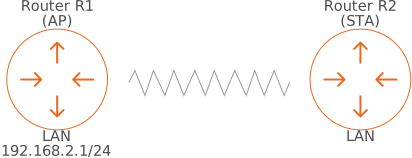
Make sure that wired clients connected to R2 get their IP addresses from R1.
-
R1 acts as an access point and has a local network from which it hands out addresses in the 192.168.2.1/24 subnet.
-
R2 acts as a client.
Access Point (AP) mode – the router waits for clients to connect to its Wi-Fi network.
Station (STA) mode – the router does not create its own network but connects to a specified Wi-Fi network instead.
Procedure:
The configuration of the Wi-Fi interface on the router involves several steps. In Access Point (AP) mode, this includes network creation and its subsequent integration with a network bridge. In Station (STA) mode, it implies network creation followed by network interface configuration.
Adapter Configuration
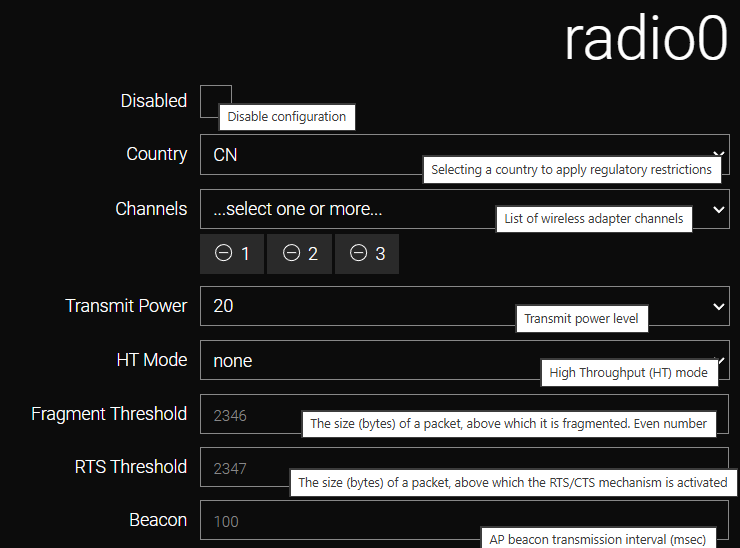
The Wi-Fi adapter configuration is performed in the /wireless/adapter section. For routers equipped with two Wi-Fi adapters, each module is configured independently.
|
The maximum number of Wi-Fi networks (AP/STA) that can be created on a single adapter depends on the router series: X Series: up to 8 S Series: up to 4 M Series: up to 16 |
Field |
Description |
Disabled |
Enables or disables the adapter. |
Country |
The region defining the list of permitted channels. |
Channels |
Channel selection: |
Apply the settings by clicking the Apply button.
Access Point Configuration
-
Navigate to the /wireless/network section and click Add. In the displayed form, specify the system name, select the adapter (e.g., radio0), and click OK.

-
Configure the network parameters in the subsequent menu:
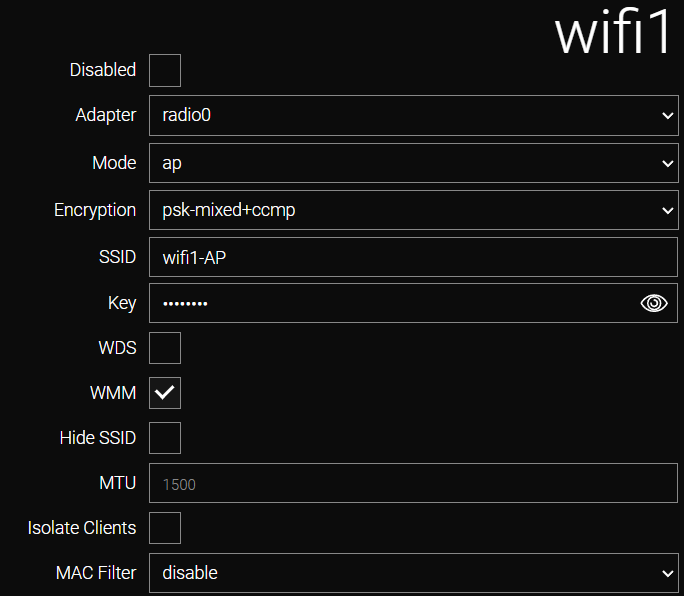 Figure 4. Network configuration in psk-mixed+ccmp mode
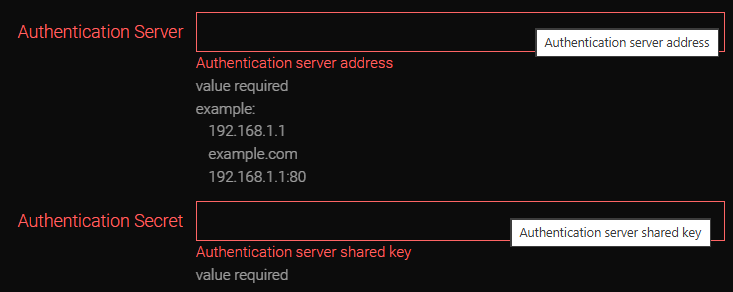 Figure 5. Additional fields for wpa-mixed-ccmp
-
Set Mode to AP.
-
In the Encryption list, select None for open networks, psk-mixed+ccmp for standard networks with a shared key, or wpa-mixed-ccmp for enterprise-level security.
-
Enter the network identifier in the SSID field.
-
For psk-mixed+ccmp, enter the network key in the Key field.
-
Make sure to enable the WDS option.
-
For wpa-mixed-ccmp, specify the RADIUS server address in the Authentication server field and the shared encryption key in the Authentication secret field.
-
Other parameters may remain at their default values.
-
Field |
Value |
Adapter |
Physical adapter (radio0 is used for single-adapter configurations). |
Mode |
Operating mode: ap (Access Point) or sta (Station). |
Encryption |
Security and encryption settings: None (no security), psk-mixed+ccmp (standard security with a shared key), or wpa-mixed-ccmp (security with a RADIUS authentication server). |
SSID |
Wireless network identifier. |
Key |
Network key (password), applicable only to psk-mixed+ccmp. |
WDS |
Enables Ethernet Bridging. |
WMM |
Enables Wireless Multimedia QoS for multimedia traffic. |
Hide SSID |
Hides the network identifier. |
MTU |
Maximum frame size for the network. |
Isolate Clients |
Isolates wireless clients from one another (recommended for public networks). |
MAC Filter |
Enables MAC address filtering: allow (allowlist), deny (denylist), or disable (filtering off). |
Authentication server |
RADIUS server address (applicable only to wpa-mixed-ccmp). |
Authentication secret |
Shared encryption key for the RADIUS server (applicable only to wpa-mixed-ccmp). |
-
In the /network/bridge section, select the required bridge. In its settings, add the wifi1 interface to the Port list and click Apply.
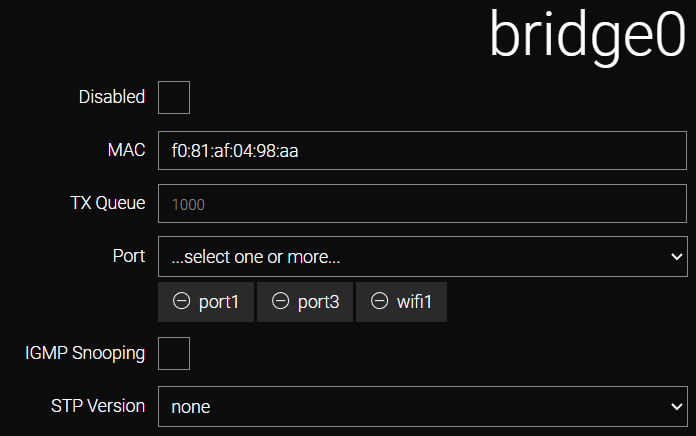
| When creating a new bridge, you also need to create a new interface. |
-
Navigate to the /ip/interface section and click Add. In the displayed form add bridge0 to the Device list and static to the Type list. Click OK.
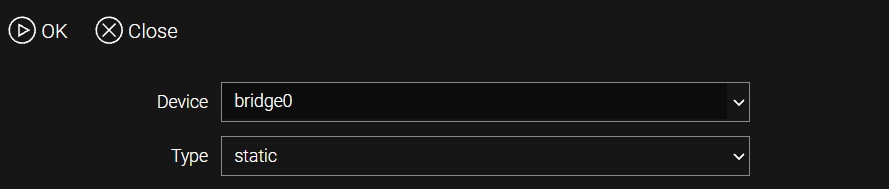
-
In the displayed form, assign 192.168.2.1/24 to the IP Address field and click Apply.
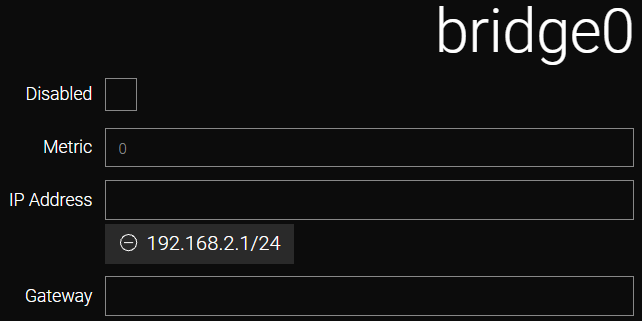
-
Navigate to the /service/dhcp-server section to configure the DHCP server on R1, which will allow connected clients to obtain an IP address automatically. Click Add. In the displayed form, select the bridge0 interface and click OK.
Configure the settings as shown in the example.
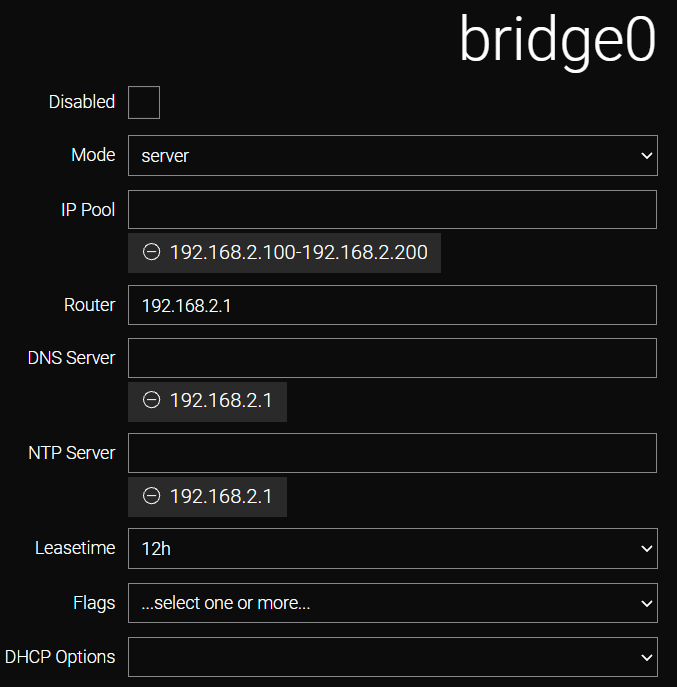
Apply the settings by clicking the Apply button.
Connecting to a Wireless Network
-
Navigate to the /wireless/network section and click Add. In the displayed form, specify the system name (e.g., wifi2) and select the hardware module in the Adapter field.
-
Configure the network parameters in the displayed menu.
psk-mixed+ccmp mode
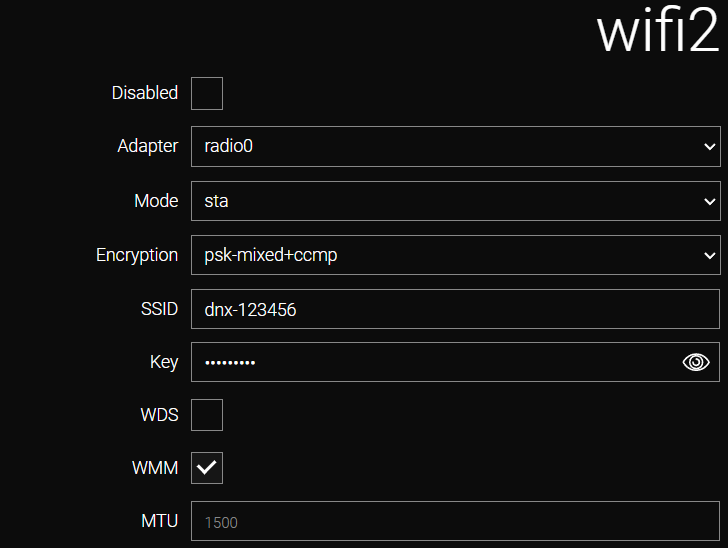
Field |
Value |
Adapter |
Selected radio adapter. In this example: radio0. |
Mode |
Operating mode: sta. |
Encryption |
Security and encryption: None (no security), psk-mixed+ccmp (standard security with a shared key), or wpa-mixed-ccmp (security with a RADIUS authentication server). In this example: psk-mixed+ccmp. |
SSID |
Wireless network identifier. In this example: dnx-123456. |
Key |
Network key (password), used only for psk-mixed+ccmp. |
WDS |
Enables Ethernet Bridging. |
WMM |
Enables Wireless Multimedia QoS for multimedia traffic. |
MTU |
Maximum frame size. |
wpa-mixed+ccmp mode
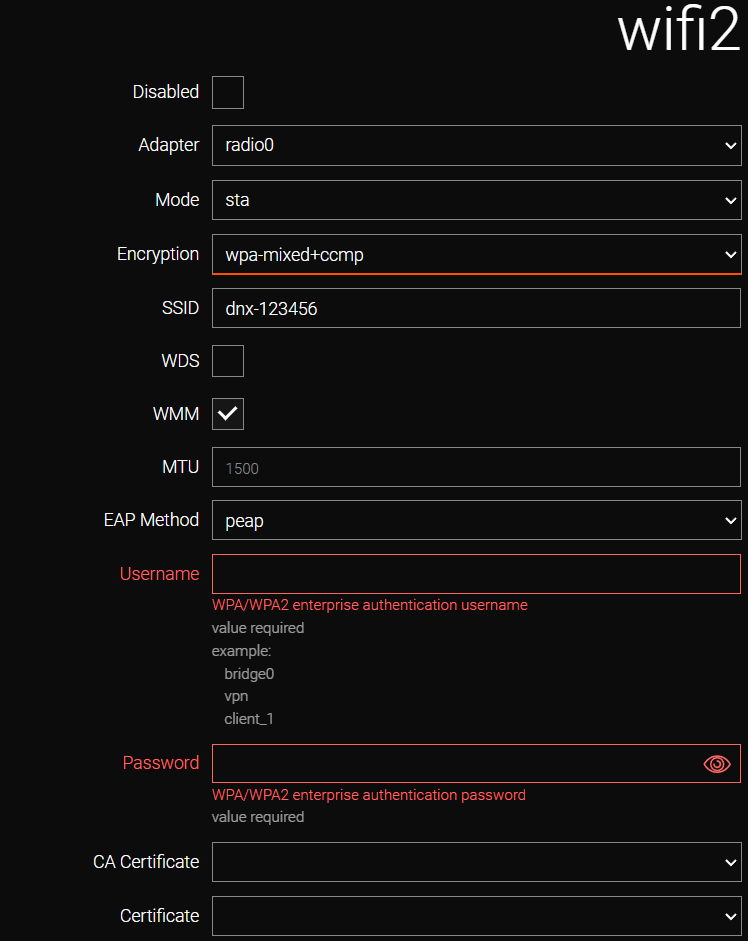
Field |
Value |
Adapter |
Selected radio adapter. In this example: radio0. |
Mode |
Operating mode: sta. |
Encryption |
Security and encryption. In this example: wpa-mixed+ccmp. |
SSID |
Wireless network identifier. In this example: dnx-123456. |
WDS |
Enables Ethernet Bridging. |
WMM |
Enables Wireless Multimedia QoS for multimedia traffic. |
MTU |
Maximum frame size. |
EAP Method |
Available: peap, tls, ttls. Select the EAP Method parameter from the list that corresponds to the network requirements. |
Username |
User name. |
Password |
User password. |
CA Certificate * |
The certificate of the Certification Authority (CA) used to authenticate the RADIUS server certificate. |
Certificate * |
Client certificate. |
| * Select the required certificates from the CA Certificate and Certificate lists. Certificates must be pre-uploaded to the /storage/file section and subsequently imported in the /storage/certificate section. |
-
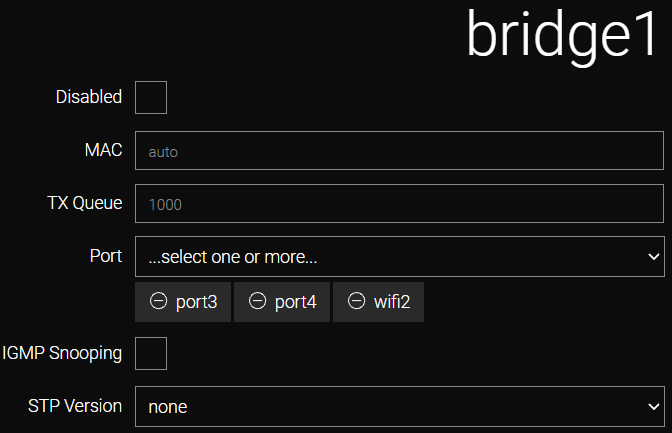
Navigate to the /network/bridge section and click Add. Select the bridge1 interface and click OK.
-
In the displayed form, add wifi2 in the Port field and click Apply.
-
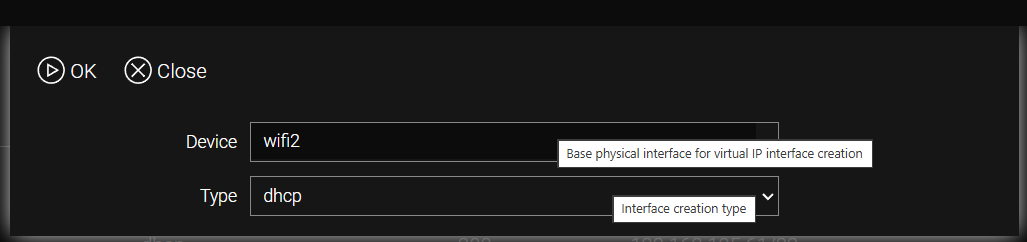
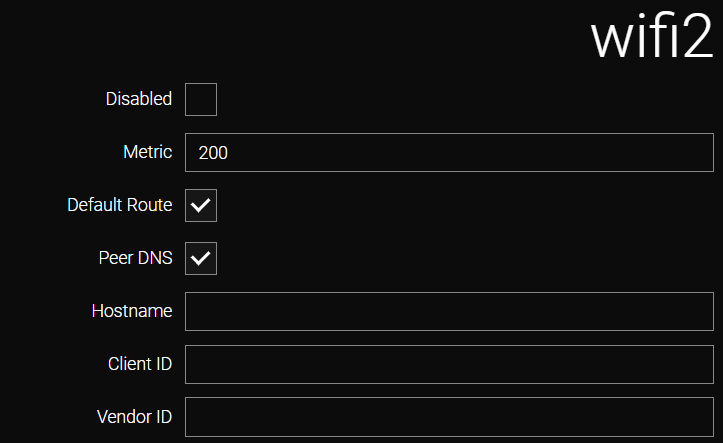
After connecting to the network, an interface must be created in the /ip/interface section. Navigate to /ip/interface and click Add.
-
Configure parameters in the displayed form if required, or leave them at their default values.
-
If a static IP address is required:
-
Navigate to the /ip/interface section, click the Add button, and select static in the Type field.
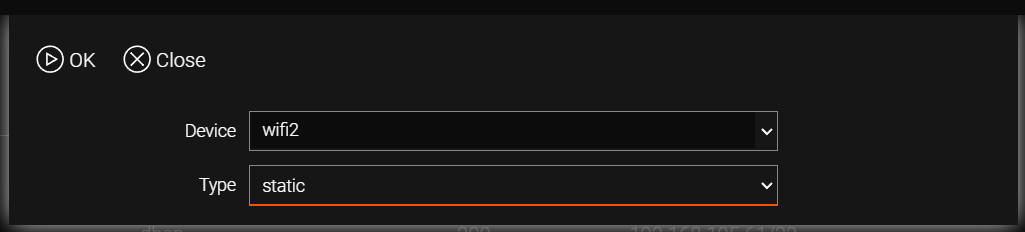 Figure 15. Configuring a static IP address
 -
Specify the IP address with the subnet mask (e.g., 158.0.0.10/24) and enter the gateway address in the Gateway field.
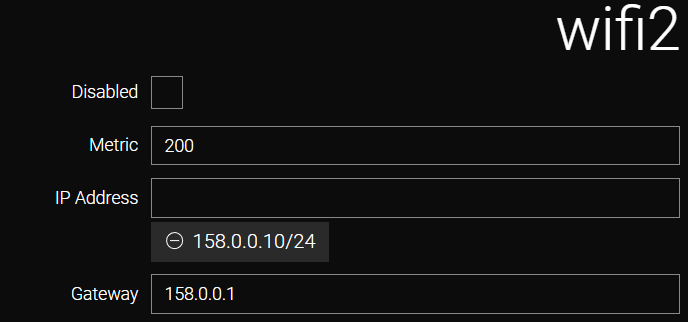 Figure 16. Configuring a static IP address
-
-
Click Apply and save the configuration using the /system config commit command.
| Donyx routers support concurrent Access Point (AP) and Station (STA) operation on a single radio module. This configuration is implemented by defining two wireless networks – one for each mode – sharing a common hardware adapter. Due to technical constraints, the broadcasted AP functions only while an active STA connection to an upstream Wi-Fi network is maintained. Should the router lose its connection to the remote access point, the local wireless network will also cease to function. |
Wi-Fi Configuration via CLI
Adapter Configuration
  /wireless adapter radio0
    beacon 100
    channels 1 2 3
    country default
    disabled -
    frag-threshold 2346
    htmode none
    rts-threshold 2347
    txpower auto

  /wireless adapter apply
Access Point Mode
To create a network in psk-mixed+ccmp mode:
/wireless network add name=wifi1 adapter=radio0
    disabled -
    encryption psk-mixed+ccmp
    hidden -
    isolate -
    key password
    mac-filter disable
    mode ap
    mtu 1500
    ssid wifi1-AP
    wds true
    wmm true

/wireless network apply
To create a network in wpa-mixed+ccmp mode, using example.com as the RADIUS server address and sharedkey as the common encryption key:
/wireless network add name=wifi1 adapter=radio0
    auth-secret sharedkey
    auth-server example.com
    disabled -
    encryption wpa-mixed+ccmp
    hidden -
    isolate -
    mode ap
    mtu 1500
    ssid wifi1-AP
    wds true
    wmm true

/wireless network apply
To create a bridge, using wifi1 as a Port:
  /network bridge add name=bridge0
    disabled -
    igmp-snooping -
    port port1,port2,wifi1
    stp-version none
    tx-queue-len 1000

  /network bridge apply
To create a interface in static type, using 192.168.2.1/24 as a IP-Address:
  /ip interface add device=bridge0 type=static
    disabled -
    gateway -
    ip-address 192.168.2.1/24
    metric -

  /ip interface apply
Start the DHCP server on the bridge0 interface:
/service dhcp server add interface=bridge0
    disabled -
    dns-server 192.168.2.1
    flags -
    leasetime 12h
    mode server
    ntp-server 192.168.2.1
    option -
    pool 192.168.2.100-192.168.2.200
    router 192.168.2.1

/service dhcp server apply
Station (STA) Mode
To connect to the dnx-123456 network using password as the shared key in psk-mixed+ccmp mode:
/wireless network add name=wifi2 adapter=radio0
    disabled -
    encryption psk-mixed+ccmp
    key password
    mode sta
    mtu 1500
    ssid dnx-123456
    wds true
    wmm true

/wireless network apply
To establish a connection to the dnx-123456 network using the username and password credentials in wpa-mixed+ccmp (WPA/WPA2 Enterprise) mode:
/wireless network add name=wifi2 adapter=radio0
    ca -
    cert -
    disabled -
    eap-method peap
    eap-password password
    eap-username username
    encryption wpa-mixed+ccmp
    mode sta
    mtu 1500
    ssid dnx-123456
    wds true
    wmm true

/wireless network apply
To create bridge1 with ports 3 and 4 and bind it to the Wi-Fi network:
/network bridge add name=bridge1
    disabled -
    igmp-snooping -
    port port3,port4,wifi2
    stp-version none
    tx-queue-len 1000

/network bridge apply
To configure a DHCP connection:
/ip interface add device=wifi2 type=dhcp
    defaultroute true
    dhcp-clientid -
    dhcp-vendorid -
    disabled -
    metric 200
    peer-dns true

/ip interface apply
To configure a static IP connection (where 158.0.0.1 is the gateway and 158.0.0.10/24 is the assigned IP address and subnet mask):
/ip interface add device=wifi2 type=static
    disabled -
    gateway 158.0.0.1
    ip-address 158.0.0.10/24
    metric 200

/ip interface apply| All modifications are permanently saved to the router configuration only after executing the /system config commit command or clicking the commit button in the web interface. |