Automating Routers with Event on Donyx Routers
| This article applies to dnxOS version 1.1 and later. |
In industrial networks, rapid response to external changes is essential. In dnxOS, this task is handled by the Event utility, which automates the router’s response to events in the system or network.
Configuration is performed in the /event section.
| The Donyx M series router interface is used as an example. Other models may have a slightly different interface. |
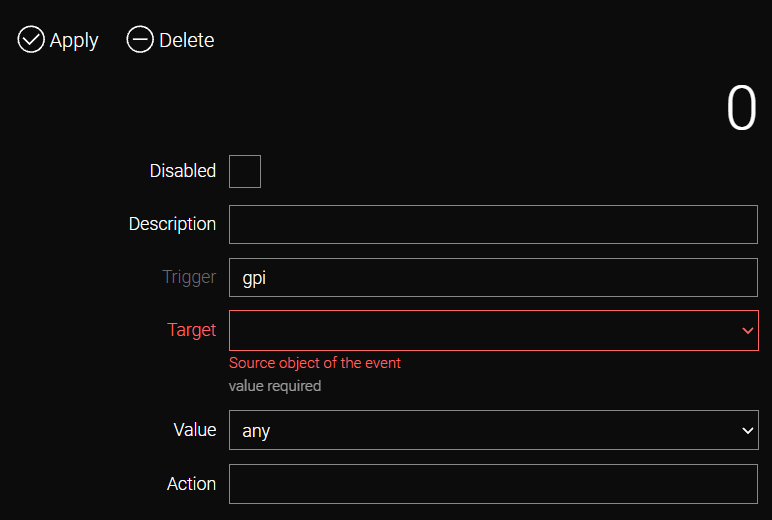
Each event consists of four key parameters.
Field |
Description |
Trigger |
Defines the subsystem that is the source of the event: defaultroute – change and/or loss of the default route |
Target |
The specific source object of the event within the selected trigger. For example, if gpi is selected as the trigger, the source will be a specific port, such as gpi_1 |
Value |
The state of the Target source object at which the specified Action is triggered. Can be 0, 1, any, or message text |
Action |
A CLI command or multiple commands separated by semicolons |
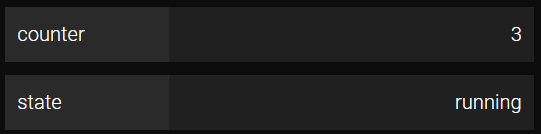
After configuring and clicking Apply, the statistics panel displays the number of times the event has been triggered and its current status.
It is possible to create multiple events for a single trigger (with identical Trigger, Target, and Value fields). In this case, they will be executed according to their sequence numbers. You can change the execution order of events by rearranging rows in the web interface or by using the following command:
/event <old_number> reorder position=<new_number>Example 1
Objective:
To send an SMS "gpi_1 high" or "gpi_1 low" to a specified number when the state of gpi_1 changes.
Procedure:
-
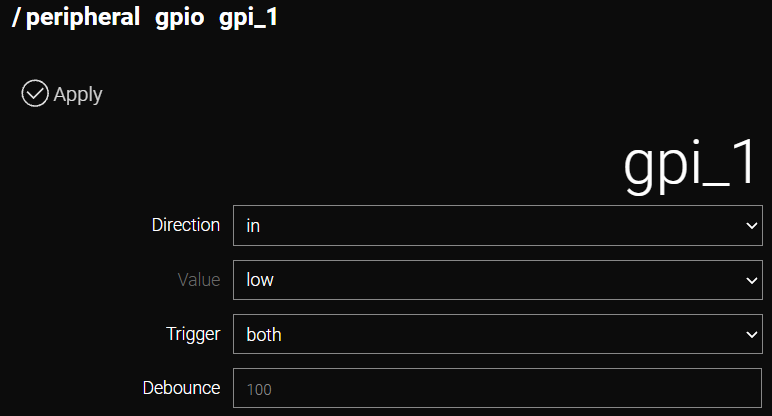
In the /peripheral → gpio → gpi_1 section, set Trigger to both so that the event fires on any change of the logic level on the pin.
-
Go to the /event section and click Add to add a new event.
-
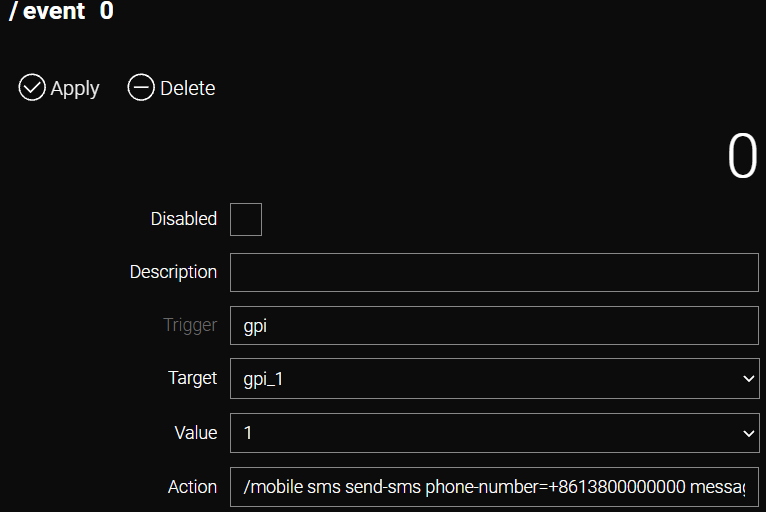
In the window that opens, select gpi for Trigger.

-
In the form that opens, specify the parameters as shown in the example and click Apply.
-
Target: gpi_1
-
Value: 1
-
Action: /mobile sms send-sms phone-number=+8613800000000 message="gpi_1 high" modem=modem1
-
-
Similarly, add another event with the following parameters and click Apply.
-
Trigger: gpi
-
Target: gpi_1
-
Value: 0
-
Action: /mobile sms send-sms phone-number=+8613800000000 message="gpi_1 low" modem=modem1
-
CLI Configuration
/peripheral gpio gpi_1
trigger both
apply
/event add trigger=gpi
target gpi_1
value 1
action /mobile sms send-sms phone-number=+8613800000000 message="gpi_1 high" modem=modem1
apply/event add trigger=gpi
target gpi_1
value 0
action /mobile sms send-sms phone-number=+8613800000000 message="gpi_1 low" modem=modem1
applyExample 2
Objective:
To set port gpo_1 to the high state upon receiving an incoming message "gpo_1 high".
Procedure:
-
Go to the /event section and click Add to add a new event.
-
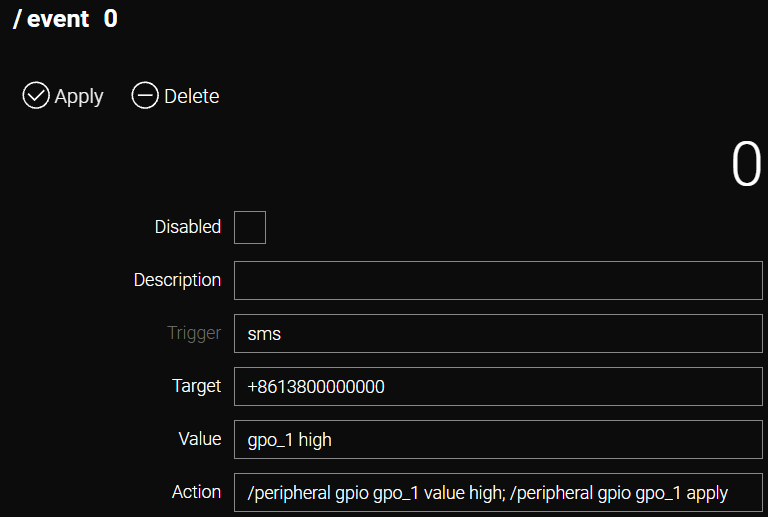
In the window that opens, select sms for Trigger.

-
In the form that opens, specify the parameters as shown in the example and click Apply.
-
Target: the phone number from which the SMS will arrive
-
Value: gpo_1 – message text
-
Action: /peripheral gpio gpo_1 value high; /peripheral gpio gpo_1 apply
-
Example 3
Objective:
To reboot the router every day at 23:00.
Procedure:
-
Go to the /event section and click Add to add a new event.
-
In the window that opens, select scheduler for Trigger.

-
In the form that opens, specify the parameters as shown in the example and click Apply.
-
Target: 23:00
-
Action: /system management reboot
-
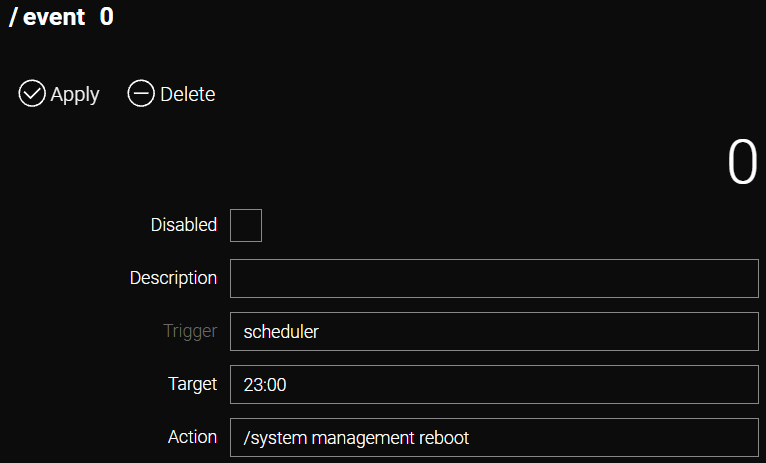
In this example, Target is a parameter that specifies either the exact time for the event to run or its repetition interval. For example:
-
~12h – run every 12 hours
-
~30m – run every 30 minutes
-
23:00 – run every day at this time
Example 4
Objective:
To restart the client L2TP tunnel to the server when the default route changes.
| For this event to work correctly, the Local IP parameter in the L2TP tunnel settings must be set to auto. |
Procedure:
-
Go to the /event section and click Add to add a new event.
-
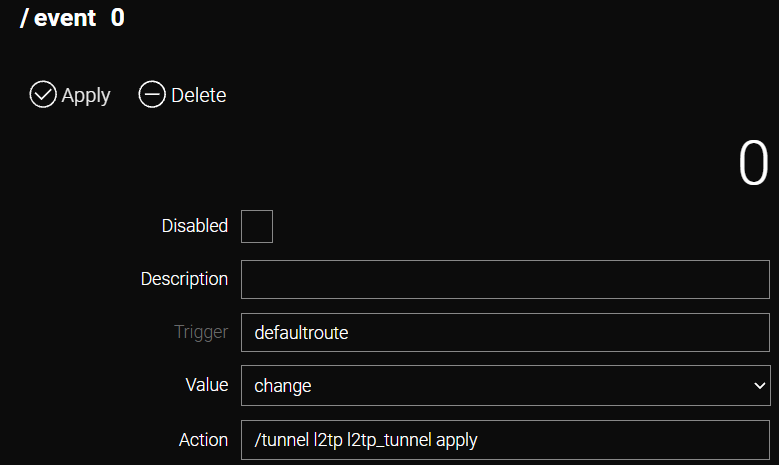
In the window that opens, select defaultroute for Trigger.

-
In the form that opens, specify the parameters as shown in the example and click Apply.
-
Value: change
-
Action: /tunnel l2tp l2tp_tunnel apply
-